![Incra_logo.png]](https://support.incragroup.com.au/hs-fs/hubfs/Incra_logo.png?width=150&height=67&name=Incra_logo.png)
Setting up a new bank account
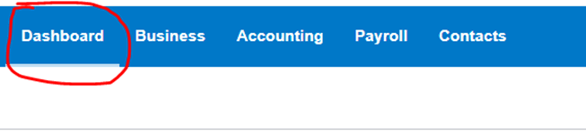
- Go to your Xero dashboard
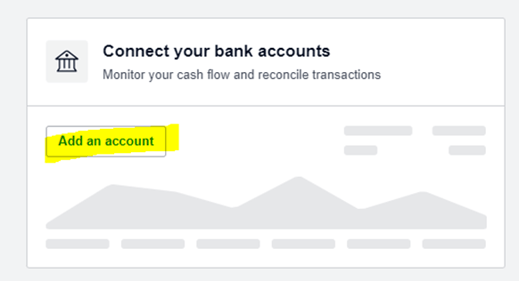
- Under ‘Connect your bank accounts’, select ‘Add an account’
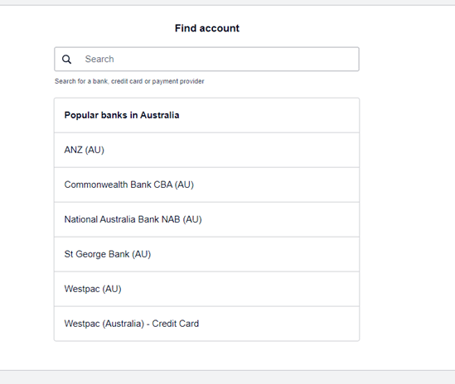
- This will take you to the following page. Follow the prompts given by Xero to add your bank account.
The following links from Xero Support may assist:
- Setting up a bank account - https://central.xero.com/s/article/Add-a-bank-account-or-credit-card-account-AU#Addabankaccount
Setting up automatic bank feeds
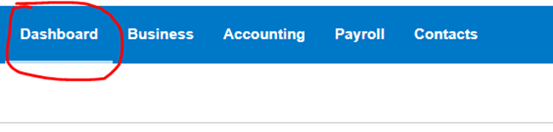
- Go to your Xero dashboard
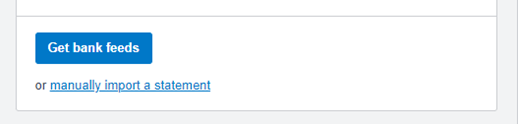
- Under your bank account, select ‘Get bank feeds’
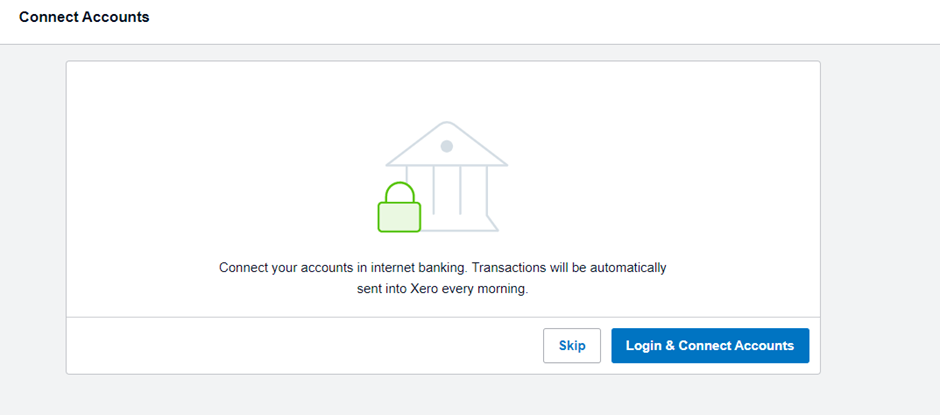
- This will take you to the following page. Select ‘Login & Connect Accounts’. This will take you to your bank login page.
- Follow the prompts given to link your bank account to your Xero file. Please ensure you set the start date for the bank feeds as the 1st July of the previous financial year.
The following link may assist. It contains a list of banks eligible to set up bank feeds with Xero. Select the bank your business account is with to find the appropriate instructions for setting up automatic bank feeds: